A Step-by-Step Guide to GA4 Offline Conversion Tracking for SaaS PPC
Learn how to set up GA4 offline conversion tracking for SaaS PPC campaigns, ensuring accurate measurement and data integrity.

Your Google Ads account says cost-per-lead is healthy. Your GA4 dashboard shows conversions ticking along. Then someone pulls the CRM report and the numbers don’t match. Pipeline is thinner than the platform data suggests, and no one can agree on which campaigns are actually working.
This is what happens when a SaaS PPC programme is optimised for form fills and ignores everything that happens after the click. GA4 offline conversion tracking closes that gap. It connects lifecycle events from your CRM, such as qualified opportunities and closed-won deals, back to the original ad interactions that generated them. Done correctly, it gives Smart Bidding a signal grounded in revenue rather than lead volume, and it gives your team reporting that holds up in a board meeting.
This guide covers the full setup: from configuring your GA4 property and Google Tag Manager container, through CRM integration and the Measurement Protocol, to validating data integrity with DebugView. The article focuses specifically on the GA4 layer of offline tracking. For strategic guidance on which specific lifecycle events to import or exclude when optimising SaaS PPC campaigns, see our saas analytics section.
What GA4 Offline Conversion Tracking Actually Does
Before getting into setup, it helps to be precise about what GA4 is doing and where it fits alongside your Google Ads tracking.
When a prospect clicks a paid ad and fills in a form on your website, GA4 captures a client_id (stored in the _ga cookie) and a session_id. Those identifiers tie that browser session to a specific user in GA4’s data model. When the same lead later progresses to a demo, a qualified opportunity, or a closed deal in your CRM, you can send those offline events back to GA4 using one of two methods: the Measurement Protocol (real-time, server-side HTTP requests) or GA4 Data Import (batch CSV uploads via the admin interface).
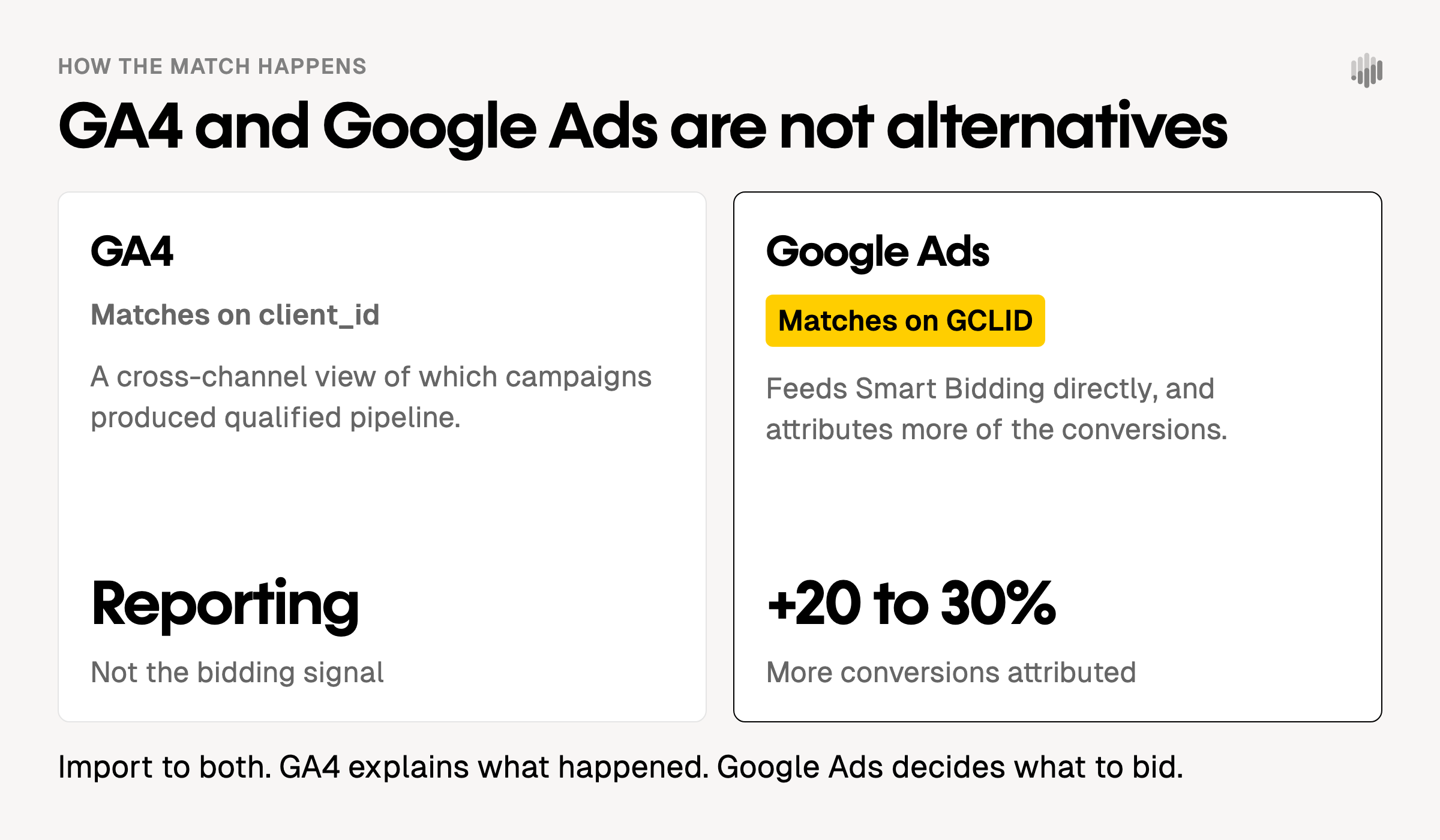
GA4 matches the offline event to the original session using client_id and session_id, not the Google Click ID (GCLID) directly. This is an important distinction from Google Ads offline conversion imports, which use GCLID matching and typically attribute 20-30% more conversions. GA4 is most useful as a cross-channel analytics layer, giving you a complete view of the customer journey across Google, organic, email, and other sources. For Smart Bidding optimisation, you should also import offline conversions directly into Google Ads. The two systems complement each other rather than compete.
For SaaS PPC teams, the value is in what you can do with the GA4 data: see which campaigns generate qualified pipeline (not just leads), understand which keywords contribute to closed-won revenue, and stop optimising toward forms that produce leads sales won’t touch.
Step 1: Prepare Your GA4 Property
Start with a clean property configuration before adding any offline data.
Create or verify your GA4 property and web data stream. Go to Admin > Data Streams and confirm your web stream is active. Your Measurement ID will start with G-. Keep this separate from your GTM container ID, which starts with GTM-.
Enable Enhanced Measurement. Within your web data stream settings, switch on Enhanced Measurement. This automatically tracks page views, scrolls, outbound clicks, file downloads, and form interactions. For SaaS sites with gated content or demo request forms, this gives you baseline event coverage before you layer in custom offline events.
Configure your data retention settings. Under Admin > Data Settings > Data Retention, extend the event data retention period to 14 months rather than the default two months. SaaS sales cycles regularly run to 90 days or beyond. If your data retention is too short, you lose the historical session data needed to match offline events to original ad interactions.
Set up internal traffic filters. Under Admin > Data Streams > More Tagging Settings > Define Internal Traffic, add your office IP ranges. Then under Admin > Data Filters, activate an Internal Traffic filter set to Exclude. This prevents your team’s own activity from polluting conversion data, which is a common and underappreciated source of noise in early-stage SaaS accounts where internal browsing makes up a meaningful share of total sessions.
Step 2: Implement the GA4 Configuration Tag via GTM
Google Tag Manager is the recommended deployment route for SaaS teams. It separates tracking logic from site code, allows non-developers to make changes, and provides pre-publish testing via Preview mode.
Create a GA4 Configuration tag. In your GTM workspace, go to Tags > New and select Google Tag (formerly the GA4 Configuration tag). Enter your GA4 Measurement ID (G-XXXXXXXXXX). Set the trigger to All Pages. This tag must fire on every page load before any GA4 event tags can send data correctly.
Pass the client_id to your data layer. The client_id is the identifier you will need to match offline events in GA4. To surface it in your data layer, add a Custom HTML tag with a small JavaScript function that reads the _ga cookie and pushes the value to dataLayer:
Pass client_id to your form submission handler. The critical step: when your demo request or lead form submits, the client_id (and ideally the session_id) must be stored on the lead record in your CRM. Add a hidden field to your forms that populates from the ga_client_id variable in your data layer. If your forms are rendered via a third-party tool like HubSpot’s embedded forms, check whether that tool exposes a mechanism to add hidden field values from the data layer. Most do.
Without this step, the entire downstream process falls apart. You cannot match offline CRM events to GA4 sessions without the client_id captured at lead creation.
Step 3: Validate with DebugView Before Going Live
DebugView is GA4’s real-time event monitor. It shows you exactly what data is arriving in your property the moment it fires, before it enters standard reports. Use it to verify your configuration before introducing any offline data.
To activate DebugView, go to GTM and click Preview in the top right of your workspace. This opens Tag Assistant and automatically adds a debug flag (_dbg parameter) to all events sent to GA4 during your session. Then go to GA4 Admin > DebugView. You will see a live timeline of events as you navigate your site.
What to check:
- The page_view event fires on every page load.
- Your ga_client_id parameter is present on form submission events.
- No duplicate events are firing (a common issue when both a GTM tag and a hardcoded tag exist for the same event).
- Conversion events are marked correctly under GA4 Admin > Events.
GTM Preview mode and GA4 DebugView serve different purposes and you need both. GTM Preview confirms your tags are firing and the correct variables are populating. GA4 DebugView confirms that GA4 is receiving the data with the right structure. A tag can fire cleanly in GTM Preview but still fail to reach GA4 if there is a consent mechanism or network issue blocking the request. Run both checks before publishing.
One note on DebugView data: events captured during debug sessions are filtered out of standard GA4 reports. Your test traffic will not contaminate your live data.
Step 4: Set Up GTM Integration with CRM for PPC Data Flow
The connection between your CRM and GA4 is the operational core of offline conversion tracking. For most SaaS teams, this means configuring a trigger in your CRM that fires when a lead reaches a specific lifecycle stage, then routing that data back to GA4 via the Measurement Protocol or a CSV upload workflow.
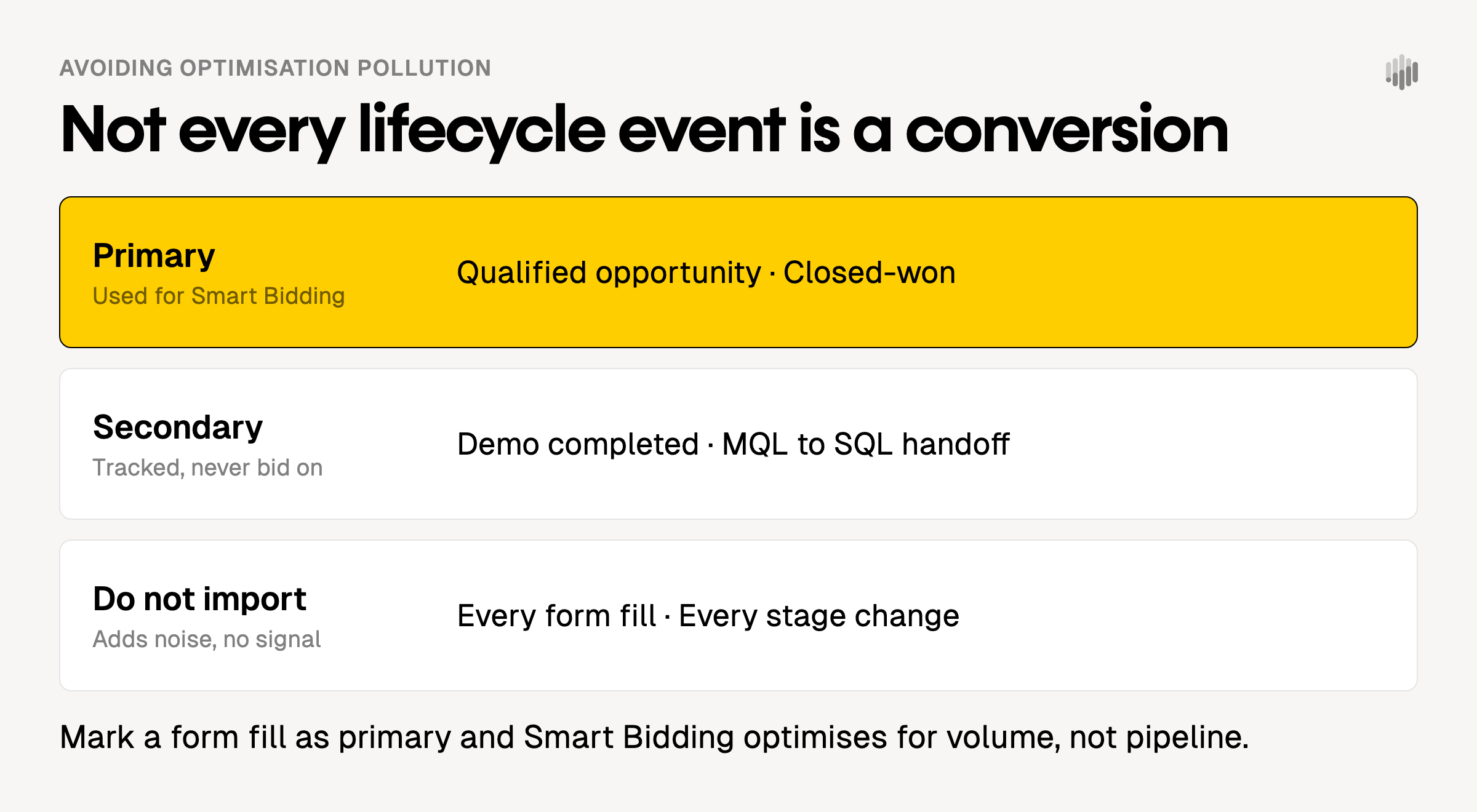
Map your conversion events before building the integration. Before touching any platform settings, define which CRM events represent meaningful conversion signals for PPC optimisation. For a typical SaaS pipeline, relevant events include: MQL to SQL handoff, demo completed, qualified opportunity created, and closed-won. Not every event belongs in GA4 as a conversion. Importing too many signals dilutes the quality of Smart Bidding data and creates reporting noise.
Choose your integration method. For most SaaS teams running HubSpot or Salesforce, there are three practical routes:
Native CRM integrations: Both HubSpot Ads (available at Marketing Hub Pro and Enterprise tiers) and Salesforce’s Google Ads integration can sync offline conversion events directly. These are the lowest-friction options. The limitation is customisation: native integrations typically sync at lifecycle stage level and offer limited control over which specific events are sent or how conversion values are assigned.
Webhook-to-automation tools: Configure a CRM workflow that fires a webhook when a deal stage changes, for example from Qualified to Demo Completed in HubSpot, or from Opportunity to Closed-Won in Salesforce. Route that webhook through an automation tool such as Make.com or n8n to format the payload and send it to GA4 via the Measurement Protocol. This approach supports multi-step pipelines and allows you to assign conversion values at each stage.
Server-side GTM: If you have already deployed a server-side GTM container, you can route CRM webhook payloads through the same infrastructure that handles your website events. This keeps all tracking logic centralised and makes it easier to maintain as the stack evolves. It is the right long-term architecture for SaaS teams running multiple ad platforms, though it requires more upfront investment.
For teams using a CRM that does not have a native Google Ads integration, Zapier supports connections with most common platforms. Be aware that field mapping, UTC timezone formatting, and SHA-256 hashing of any PII before transmission all require careful configuration regardless of the automation tool you use. These integrations are not trivial despite the no-code labelling.
Step 5: Send Offline Events via the Measurement Protocol
The Measurement Protocol is GA4’s server-side event ingestion endpoint. It accepts HTTP POST requests and processes them in near-real time, with a backdating window of up to 72 hours from the event timestamp.
A valid Measurement Protocol request to GA4 requires:
- The GA4 Measurement ID (your G- ID)
- The API Secret (generated in GA4 Admin > Data Streams > Measurement Protocol API Secrets)
- The client_id captured at lead creation
- The session_id (optional but recommended for more accurate session attribution)
- The event name and any relevant parameters, including currency and value for revenue events
Assign a value to each lifecycle event that reflects its expected contribution to revenue. For a SaaS company with an average contract value of £15,000 and a 15% lead-to-close rate, a qualified demo might carry an assigned value of £2,250 (15,000 x 0.15). These are not exact revenue figures but directional signals that help Smart Bidding weight conversion actions appropriately.
GA4 Measurement Protocol does not accept GCLID directly. This is why capturing client_id at the form submission stage is non-negotiable. Without it, GA4 reports the offline conversion as (not set) or Unassigned. If you also need to send offline conversions to Google Ads for Smart Bidding, that is a separate import using the GCLID, which you should also be capturing and storing in your CRM alongside the client_id.
For batch uploads, use GA4 Data Import under Admin > Data Import. This accepts CSV files with event data and processes them within 24 hours. Timestamps beyond 72 hours before the upload time are ignored. This method suits teams with periodic CRM exports rather than real-time webhook automation.
Step 6: Mark Conversion Events and Verify Data Integrity
Once offline events are arriving in GA4, mark the right ones as conversions under Admin > Events > toggle the Mark as Conversion switch. Only mark events that represent meaningful pipeline progression. Marking every lifecycle event as a conversion creates noise in your Advertising workspace reports and can produce misleading attribution data.
Avoid optimisation pollution. This is the most common setup mistake in SaaS PPC. If you mark a low-quality event such as any lead form submission as a conversion and use it for Smart Bidding, the algorithm optimises toward volume at the expense of quality. The fix is to use secondary conversion actions (tracked but not used for bidding) for top-of-funnel events, and primary conversion actions only for events that represent genuine pipeline value.
Verify data integrity regularly. After going live, check the following on a weekly basis for the first month:
- Event counts in GA4 align reasonably with CRM pipeline data for the same period.
- Conversion attribution is not overwhelmingly concentrated on a single channel (which often indicates a matching or deduplication issue).
- The (not set) attribution dimension is below 15% for offline conversion events. Higher than this suggests client_id capture is failing at the form level.
- Deduplication is working correctly. GA4 deduplicates on event_id. If you are sending events from multiple sources for the same lead progression, include a consistent event_id in each payload to prevent double-counting.
Check the Model Comparison report. Under Advertising > Model Comparison in GA4, compare how conversion credit is distributed across first-click, data-driven, and last-click models. For SaaS with longer sales cycles, data-driven attribution typically surfaces significant assisted value from brand and upper-funnel campaigns that last-click measurement ignores. This view is where offline conversion data pays its most direct dividend for SaaS teams: it shows which campaigns are genuinely contributing to pipeline rather than just capturing it at the final touch.
Common Pitfalls and How to Avoid Them
The 72-hour backdating limit. If your CRM events fire more than 72 hours after the original session, a Measurement Protocol POST will still be accepted by GA4 but the event will be attributed to the day it arrives, not the day it occurred. For SaaS sales cycles that run weeks or months, this means your GA4 reports will show pipeline events clustering around upload time rather than reflecting the actual conversion journey. Use lifecycle milestone events early in the sales cycle, where the gap between ad click and CRM event is narrow, for real-time protocol uploads. Reserve late-stage events (closed-won) for GA4 Data Import where the backdating constraint is less critical, or accept that GA4 attribution for these events will be approximate.
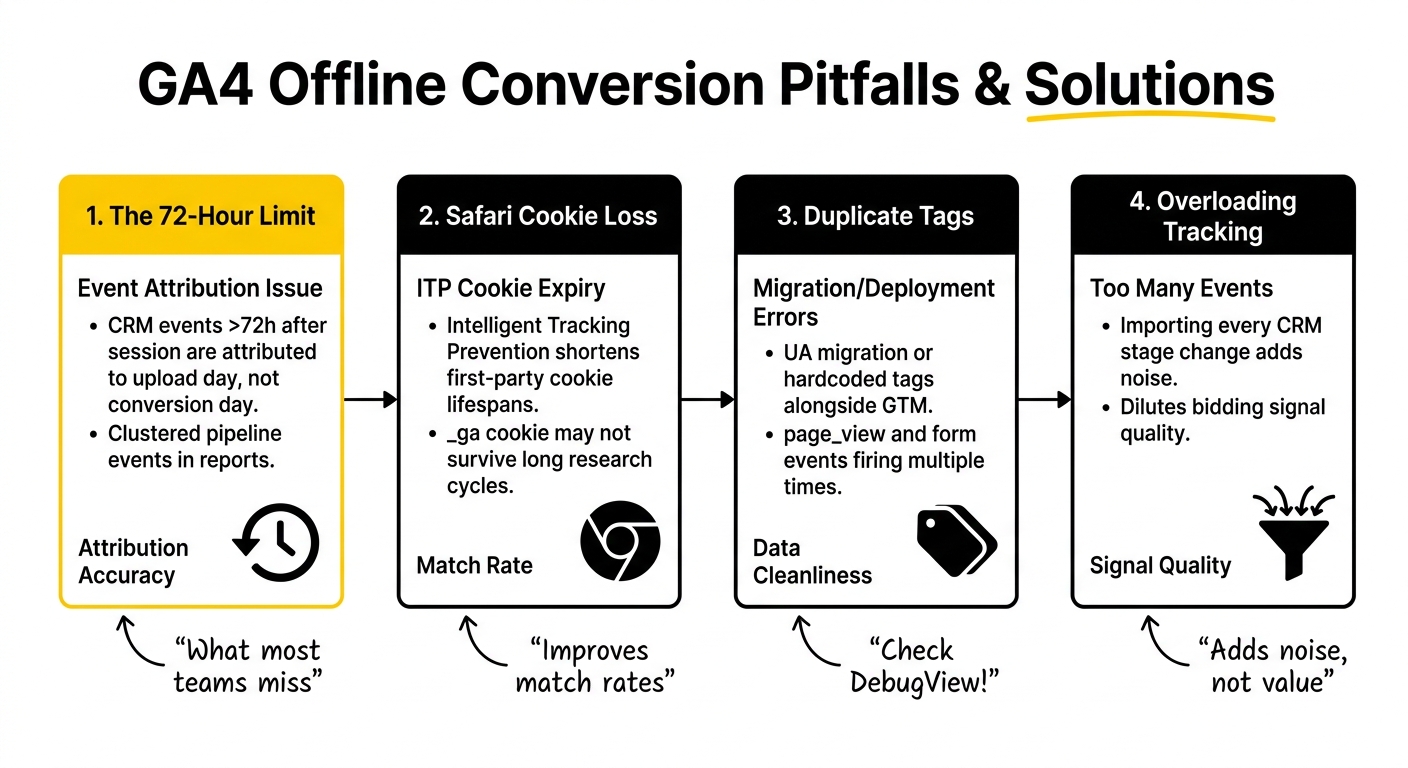
Safari and cookie loss. Safari’s Intelligent Tracking Prevention limits first-party cookie lifespans. For SaaS prospects who research over multiple sessions on Safari, the _ga cookie may not survive long enough to match the offline event. Server-side tracking extends cookie lifespans and improves match rates for this segment. It is worth implementing if a significant share of your organic or paid traffic comes from Safari.
Duplicate tags. A frequent issue when migrating from Universal Analytics or when developers have hardcoded GA4 tracking alongside GTM-deployed tags. Run DebugView before every GTM publish and confirm that page_view and form events are firing exactly once per action.
Overloading conversion tracking with too many events. Import the lifecycle events that are genuinely predictive of revenue. Importing every CRM stage change adds noise without improving bidding signal quality.
Frequently Asked Questions
What is GA4 offline conversion tracking and why is it important for SaaS PPC?
GA4 offline conversion tracking connects events that happen outside the browser, such as qualified opportunities and closed deals in your CRM, back to the original paid ad sessions that generated them. For SaaS PPC teams, it matters because the lead form submission is rarely the revenue event. If Smart Bidding is only trained on form fills, it optimises for volume rather than pipeline quality. Importing downstream CRM events gives the algorithm a signal closer to actual revenue, improving campaign efficiency over time.
How do you set up GA4 offline conversion tracking for PPC campaigns?
The core setup involves four steps: capturing client_id and session_id in your GA4 configuration via GTM and passing them to your CRM at lead creation; configuring a CRM trigger that fires when a lead reaches a pipeline milestone; sending the offline event to GA4 using the Measurement Protocol or Data Import with the client_id included; and marking the event as a conversion in GA4 Admin. Validate the full flow using GA4 DebugView before going live.
What are the best practices for importing lifecycle events into GA4?
Import events that represent genuine pipeline progression rather than every CRM stage change. Assign revenue values to each event based on historical conversion rates from that stage to closed-won. Use event_id for deduplication. Capture client_id reliably at the form submission stage. For events that occur more than 72 hours after the original ad click, use GA4 Data Import rather than the Measurement Protocol to ensure correct event timing in reports.
How can you ensure data integrity when tracking offline conversions in GA4?
After setup, monitor weekly: compare GA4 conversion counts against CRM pipeline data, check that (not set) attribution is below 15% for offline events, confirm no duplicate events are appearing in DebugView, and verify event deduplication via consistent event_id values. Use the GA4 Model Comparison report to cross-reference attribution across models. Any sudden spike or drop in offline conversion volume warrants immediate DebugView investigation.
What common challenges do Marketing Operations Specialists face when integrating GA4 with existing MarTech stacks?
The most common are: client_id not being captured on third-party form tools, leading to high (not set) attribution; CRM workflows not firing reliably on deal stage changes; timezone mismatches in Measurement Protocol payloads causing attribution date errors; and duplicate event firing when GTM tags coexist with hardcoded tracking. Privacy consent mechanisms that block GA4 tags for users who decline can also create gaps in client_id coverage that are invisible until you check data completeness at the CRM level.
How can you enhance attribution accuracy using GA4 offline conversion tracking?
Capture both client_id and session_id at form submission, assign revenue values to each lifecycle event, and use GA4’s data-driven attribution model rather than last-click. Cross-reference GA4 attribution with the Model Comparison report to understand assisted conversion value. For the most accurate campaign-level attribution, complement GA4 offline tracking with direct Google Ads GCLID imports using Enhanced Conversions for Leads, which typically attributes 20-30% more conversions than GA4 alone.
What steps should be taken to avoid optimisation pollution in PPC campaigns?
Mark only pipeline-significant events as primary conversion actions in GA4 and Google Ads. Use form submissions and early-stage events as secondary (observed but not optimised) conversions. Review your conversion action settings whenever you add a new lifecycle event import. Check that no low-quality or internal test events are marked as conversions. And apply an Internal Traffic filter in GA4 so that team browsing does not generate phantom conversion signals.
How do you integrate Google Tag Manager with GA4 for offline conversion tracking?
Deploy a GA4 Configuration tag (Google Tag) in GTM, set to fire on All Pages. Add a Custom HTML tag that reads the _ga cookie and pushes client_id to the data layer. Create a Data Layer Variable to capture the value. Pass it via a hidden form field to your CRM on every lead submission. Validate with GTM Preview mode plus GA4 DebugView before publishing. This combination confirms both that GTM is firing the tags correctly and that GA4 is receiving the data with the right parameters.
What are the key revenue signals to track in GA4 for SaaS businesses?
The highest-value signals are events that are reliably predictive of closed-won revenue and occur early enough in the sales cycle to influence bidding while campaigns are still active. For most SaaS teams this means: demo completed, sales qualified opportunity created, and trial-to-paid conversion. Closed-won revenue is valuable for reporting but arrives too late in long sales cycles to materially improve in-flight campaign performance. Import it for attribution visibility rather than Smart Bidding signal.
How can effective measurement strategies improve reporting reliability in SaaS PPC?
Reliable SaaS PPC reporting requires a consistent definition of each conversion event across your CRM, GA4, and ad platforms. When all three systems agree on what constitutes a qualified lead, a demo, and an opportunity, your team stops debating whose numbers are right and starts working on what actually improves results. Offline conversion tracking enforces that consistency by tying every downstream pipeline event back to the original ad interaction. The result is reporting that links spend to pipeline, not just to click volume.
Final Thought
The gap between a form fill and a closed deal is where most SaaS PPC programmes go wrong. GA4 offline conversion tracking narrows it. The setup is methodical rather than technically complex, but it requires attention at every stage: clean tag deployment, reliable client_id capture, a working CRM trigger, correctly structured Measurement Protocol payloads, and ongoing data integrity checks.
If you are working through this setup or reviewing an existing offline tracking configuration, we are happy to take a look. This is the kind of work we do regularly with SaaS teams where the measurement layer needs to match the complexity of the sales cycle.